

Ever have one of those projects where the walls go at some angle other than 0 or 90? Tired of trying to get walls to come in at 47 degrees? Try rotating your workplane.
On the Home tab in Revit, look for the Workplane panel on the ribbon. It is usually to the far right.
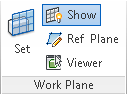
Click on the “Show” button, and you’ll see a blue grid over top of your floor plan. That is the plane that you are modeling in. To change your working angle, just rotate the workplane. Select the workplane and use the rotate tool.
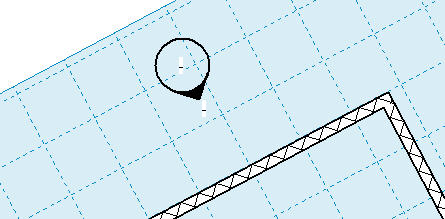
Might be a good idea to rotate it back to its original orientation when you are done, to help avoid confusion.
 Design Tech Field Guide