
Dimensions, who needs them?
Sadly, we all do, at least until the rainbows and unicorns of sharing the model comes to pass. I know. I hear all the sales guys tell me the same thing: “Soon no one will be printing anything! You’ll give a CD of the model to the contractor! And donuts will rain down from the sky!” I like to think I’m a pretty forward thinking guy, but we still have a long time until no one wants drawings.
In the meantime, we have to make due with creating a highly accurate model, and slapping dimensions all over it.
Revit does a couple “goofy” things with dimension strings and I thought I’d list a couple here, mainly so I don’t forget (that’s really all this blog is – a list of items that I KNOW I will forget about in a week or so). I put “goofy” in “quotes” because once you understand what Revit wants to do, then it’s not “goofy” “at” “all”.
Revit has some nice features for dimension text. One of these is the ability to add text above, below or as a prefix or suffix to the dimension text itself.
So, you have placed a window in a masonry wall and you want to dimension the opening. The dimension string snaps nicely to the window edges and you place your dimension. Double-clicking on the text brings up the Dimension Text box where you will deflty type in “MO” to the field below the dimension.
Except, you won’t.
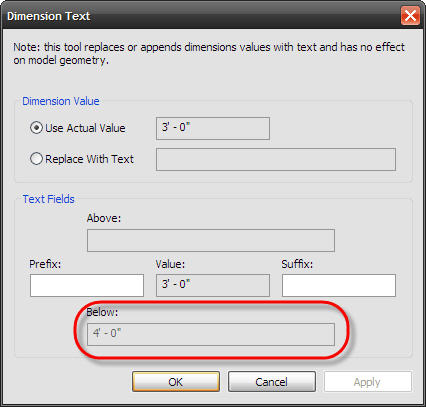
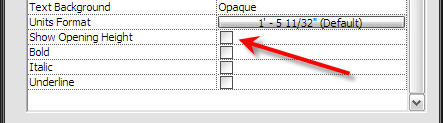
The “Below” field is already taken by some other dimension! How very rude! What in the world is it?! I won’t keep you in suspense anymore: When you dimension to the edges of a window, the Below text is automatically filled in with the window’s height parameter. You can’t change it, you can either tell your dimension type to show it or not:
What do you do? Put in a piece of text? Of course not. You have to move your witness line. It won’t actually move, but you drag the middle square grip to the wall edge and not the window edge.
They’re the same line, aren’t they? Pretty sneaky, sis.
While you are dragging, move your mouse over the edge. It will highlight the line. Check out your status bar and it will report the window element. Slap your TAB key until the status bar is telling you that you are now selecting the wall. Let go of your mouse. You are now dimensiong the wall and not the window. Congratulations! You can now edit the Below text! And as a note – yes, the Above text is also grayed out, but I have no idea why. When we find the top secret Revit manual, I’ll let everyone know.
Another “fun” dimensioning oddity is a long dimension string that will either disappear, or chunks of it will disappear. This one is actually much easier to understand.
You can dimension to pretty much anything in Revit. Those dimensions are view specific. If, for one reason or another, the element that you are dimensions no longer appears in that view, the portion of the dimension string that was touching it will hide too. Why might an element no longer appear?
- The element was hidden
- The element’s category was hidden
- The view range changed
- The element was deleted
- The element was NOT in the original view, but in an Underlay (yes, you can absolutely dimension to elements in Underlay, then someone turns them off and your dimensions poof away, too!)
One of our biggest tips for dimensions has been to wait as long as you can during the documentation process to place them. ABSOLUTELY build your model accurately (I shouldn’t even need to write that, but you know someone out there is shocked at it), but wait until the end to place your dimensions. That way your views have had time to settle in, and certainly your model has baked nicely.
Now where are those donuts?

